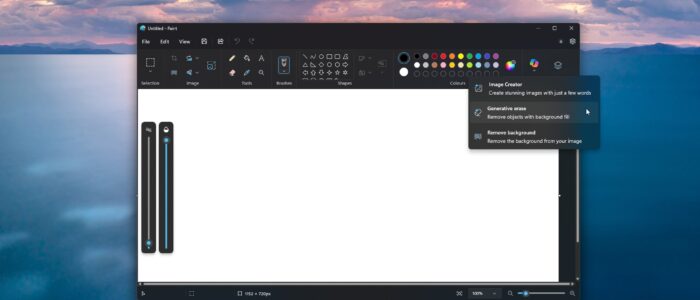
Microsoft Paint app in Windows 11 now comes with AI-powered features such as image generation, background removal, Background Remover, and smart editing tools. These features are really useful for personal use,r but some organizations prefer a traditional, offline, and distraction-free experience. And some organizations restrict users from using the AI-based tools due to privacy concerns. This article will guide you to disable AI features in the Paint app in Windows 11.
Disable AI features in the Paint app in Windows 11:
Currently, there is no direct option to turn off these AI features inthe Microsoft Paint app, but you can use the system-level settings to disable them. This article will guide you to disable AI features using the following methods.
- Using the Registry Editor
- Using the Group Policy Editor
You can use the Group Policy Editor method for Windows 11 Pro, Enterprise, and Education editions. If you are using Windows 11 Home Editions, use the Registry Editor Method instead.
Disable AI Features in the Paint app using Registry Editor:
Open the Run command by pressing Windows + R, type regedit, and hit Enter. This command will open the Registry Editor
Next, navigate to the following Registry path.
HKEY_LOCAL_MACHINE\SOFTWARE\Microsoft\Windows\CurrentVersion\Policies\Paint
If you are not able to see the Paint Registry Key, right-click on the Policies folder and choose New > Key and name it as Paint.
Next, right-click on the Paint Registry key and choose New > DWORD (32-bit) Value.
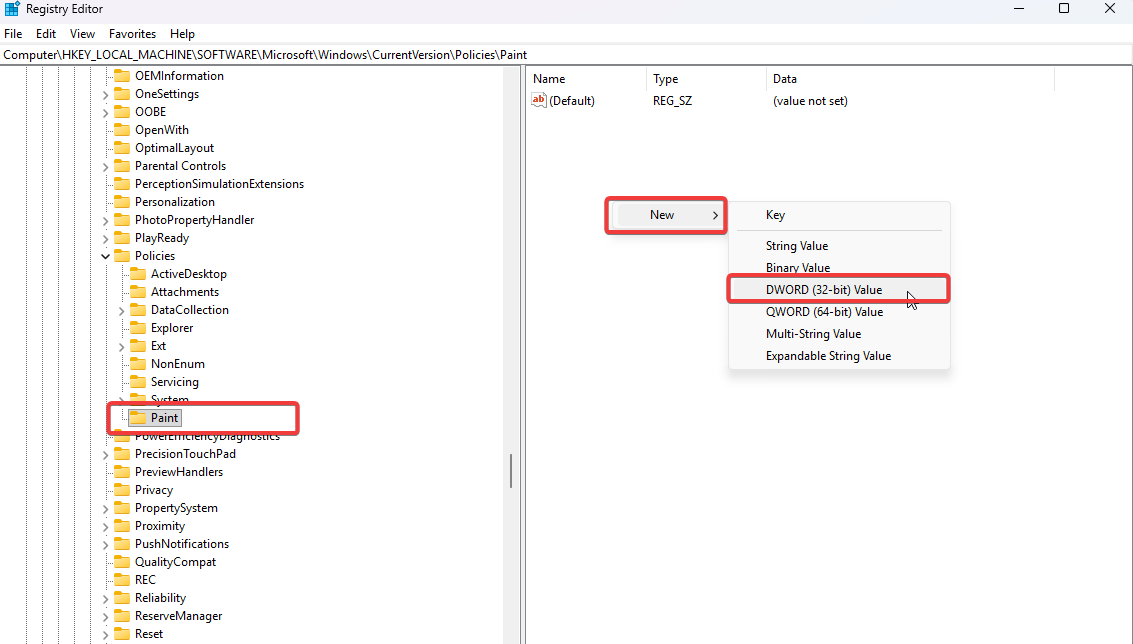
Name the DWORD as DisableImageCreator, double-click on the newly created DWORD, and set the Value Data to 1, and then click on OK.

Close the Paint app and restart the system once to apply the changes.
Note: Cocreator is currently available only on the Copilot + PCs with the supported NPUs. If you are using a regular Windows 11 PCs, this feature will not be available, and the settings below won’t be effective.
To Disable Image Creator, follow the same steps.
Open the Run command by pressing Windows + R, type regedit, and hit Enter. This command will open the Registry Editor
Next, navigate to the following Registry path.
HKEY_LOCAL_MACHINE\SOFTWARE\Microsoft\Windows\CurrentVersion\Policies\Paint
If you are not able to see the Paint Registry Key, right-click on the Policies folder and choose New > Key and name it as Paint.
Next, right-click on the Paint Registry key and choose New > DWORD (32-bit) Value.
Name the DWORD as DisableCocreator, double-click on the newly created DWORD, and set the Value data to 1, and click on OK.
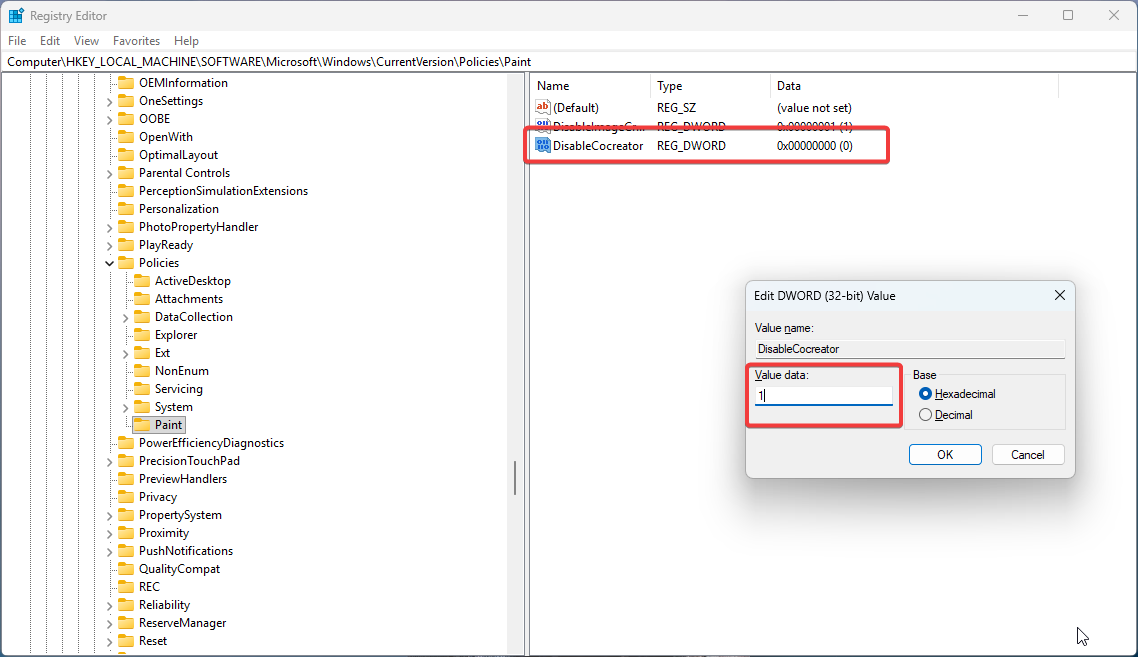
Close the Paint app and restart the system once to apply the changes.
Using the Group Policy Editor:
Open the Run command by pressing Windows + R, type gpedit.msc, and hit Enter. This command will open the Registry Editor
Navigate to the following location:
Computer Configuration > Administrative Templates > Windows Components > Paint
From the right-hand pane, click on Paint, and from the left-hand pane, you will find individual policies for controlling AI features for the Paint app.
Disable Image Creator in Paint:
Open the Run command by pressing Windows + R, type gpedit.msc, and hit Enter. This command will open the Registry Editor
Navigate to the following location:
Computer Configuration > Administrative Templates > Windows Components > Paint
From the right-hand pane, click on Paint, and from the left-hand pane click on the Disable Image Creator. Double-click on it to open the Policy Settings and Select Enabled.
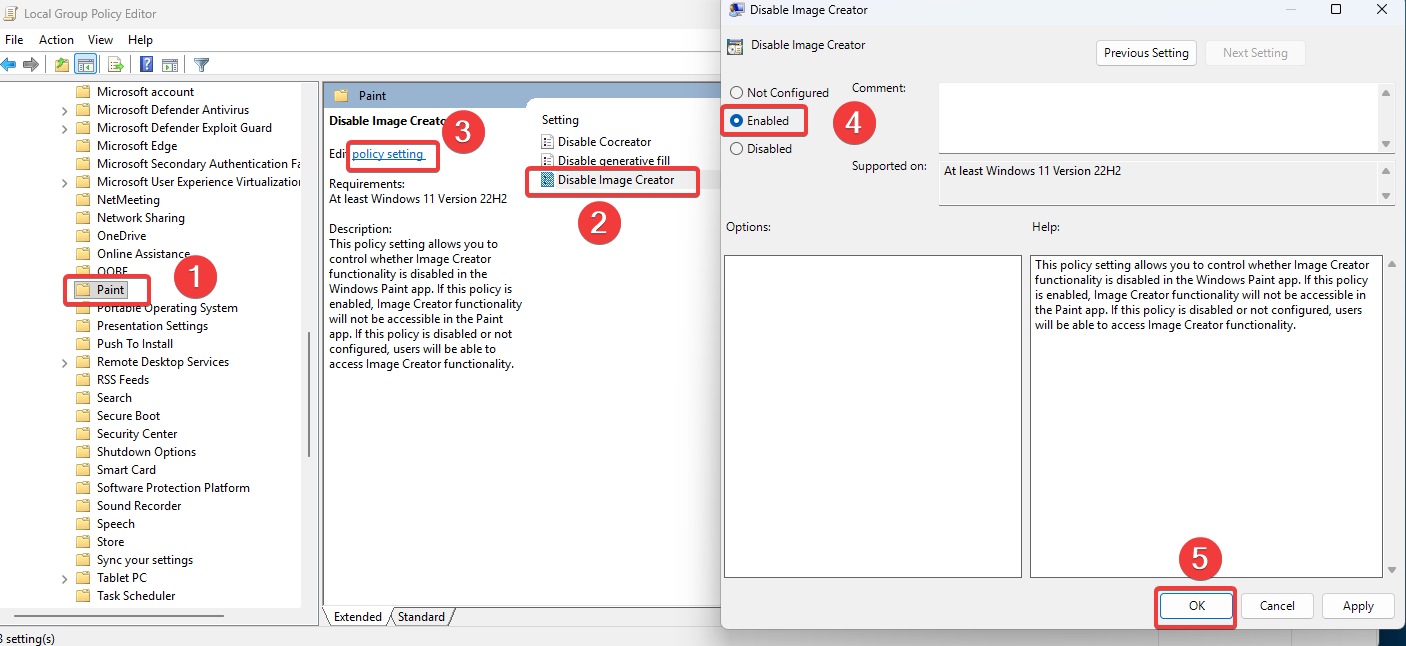
Click on Apply and OK.
Next Open the Command Prompt and type gpupdate /force and gpupdate /sync, this will update the policy.
Disable Cocreator in paint:
Open the Run command by pressing Windows + R, type gpedit.msc, and hit Enter. This command will open the Registry Editor
Navigate to the following location:
Computer Configuration > Administrative Templates > Windows Components > Paint
From the right-hand pane, click on Paint, and from the left-hand pane, click on the Disable Cocreator. Double-click on it to open the Policy Settings and Select Enabled.
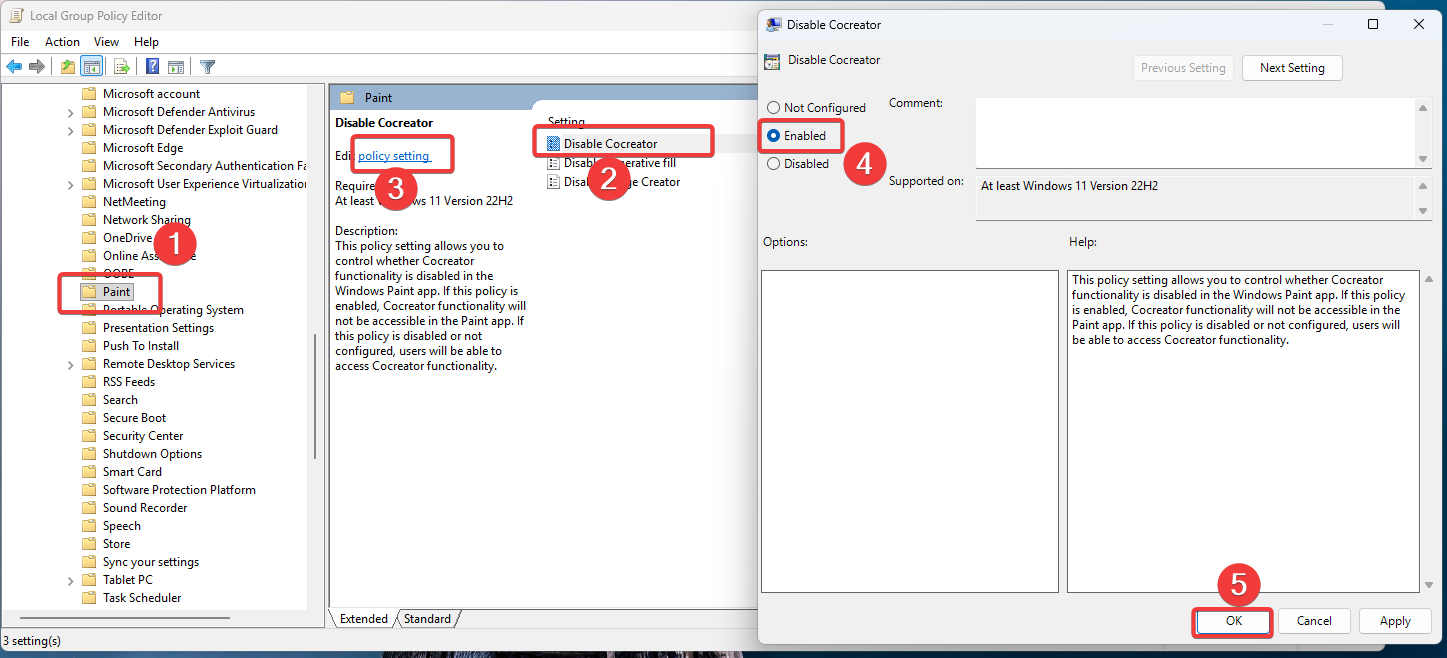
Click on Apply, OK, and Update the policy using the previous commands.
Disable Generative Fill in Paint:
Open the Run command by pressing Windows + R, type gpedit.msc, and hit Enter. This command will open the Registry Editor
Navigate to the following location:
Computer Configuration > Administrative Templates > Windows Components > Paint
From the right-hand pane, click on Paint, and from the left-hand pane click on the Disable generative fill. Double-click on it to open the Policy Settings and Select Enabled.
Click on Apply, OK, and Update the policy using the previous commands.
Although Microsoft Paint in Windows 11 does not currently offer a built-in option to disable AI features at the application level, But you can effectively restrict these capabilities using system-level controls such as the Registry Editor and Group Policy Editor using the above mentioned methods. These approaches help enforce organizational security, privacy, and compliance requirements while ensuring a consistent and distraction-free user experience.
Read Also:
How to Block/Unblock inbuilt Windows apps in Windows 11?
How to clear recent MSPaint History in windows 10?