Microsoft introduced the Sites.Selected application permission to help organizations follow the principle of least privilege when accessing SharePoint Online.
Unlike Sites.Read.All, Sites.ReadWrite.All, or Sites.FullControl.All, which grant an application access to every SharePoint site in a tenant, Sites.Selected allows administrators to grant access only to specific SharePoint sites.
This is the recommended approach for Azure Functions, Logic Apps, Power Automate, background services, and other app-only integrations.
However, many administrators encounter the same frustrating issue.
“I have granted Sites.Selected permission, assigned the site permission, granted admin consent, but my application still receives 403 Access Denied.”
If you’ve experienced this problem, you’re not alone.
This article walks through the complete setup process and, more importantly, the troubleshooting steps we used during a real production investigation to identify and resolve the SharePoint Sites.Selected 403 Access Denied issue.
How Sites.Selected Works?
Many administrators assume this is enough:
App Registration

Microsoft Graph
    Sites.Selected

Admin Consent
Unfortunately, it isn’t. Sites.Selected does not automatically grant access to any SharePoint site.
Instead, it simply allows administrators to grant access later.
Think of it like this:
Tenant

├── HR
├── Finance
├── Engineering
└── InfoSec

App Registration
        │
        └── Sites.Selected

Result:

No access to any SharePoint site
The application still cannot read or write SharePoint content.
The Two-Step Permission Model
Microsoft uses a two-step security model.
Step 1
Grant the application:
Microsoft Graph

Application Permission

Sites.Selected
Grant Admin Consent.
The application still has zero SharePoint access.
Step 2
Grant the application permission to a specific SharePoint site.
Example:
https://contoso.sharepoint.com/sites/InfoSecDocumentGovernanceRepositoryOnly after assigning the site permission can the application access SharePoint.
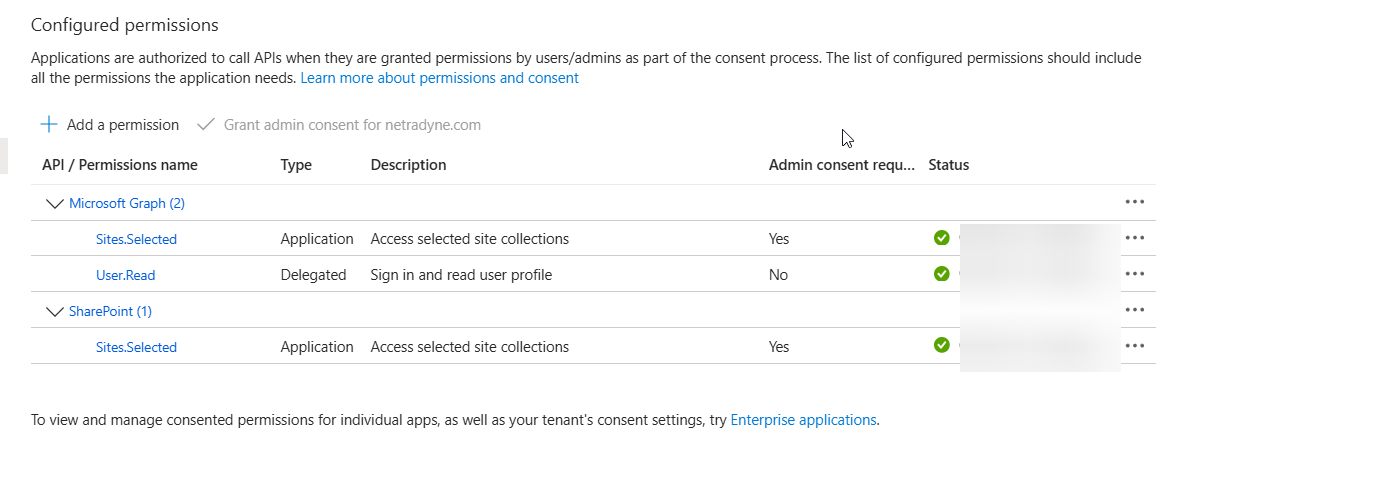
Required API Permissions
For Microsoft Graph-based applications, the App Registration should have:
Microsoft Graph
Application

Sites.Selected
If your application also uses the SharePoint REST API (/_api/...) or SharePoint SDKs, you should also grant:
SharePoint
Application

Sites.Selected
Grant Admin Consent for both permissions.
Common Symptoms
You may receive errors like:
403 Access Deniedor
401 Unauthorizedor
AADSTS7000215
Invalid client secret provided
or
Either scp or roles claim need to be present.Each error points to a different layer of the authentication process.
Prerequisites
Before continuing, ensure:
- Azure App Registration exists.
- Microsoft Graph
Sites.Selectedpermission added. - SharePoint
Sites.Selectedpermission added (recommended if using SharePoint REST). - Admin Consent granted.
- Microsoft Graph PowerShell installed.
- SharePoint Administrator or Global Administrator permissions.
Install the Graph SDK.
Install-Module Microsoft.Graph -Scope CurrentUserConnect to Microsoft Graph.
Connect-MgGraph -Scopes "Sites.FullControl.All"Granting Site Permission
Retrieve the SharePoint Site.
$SiteUrl = "contoso.sharepoint.com:/sites/SharePointSiteName"

$site = Get-MgSite -SiteId $SiteUrl
Grant permission.
$params = @{
    roles = @("write")
    grantedToIdentities = @(
        @{
            application = @{
                id = "YOUR-APP-ID"
                displayName = "My Automation"
            }
        }
    )
}

New-MgSitePermission `
    -SiteId $site.Id `
    -BodyParameter $params
Verify the Permission
Always verify the assignment.
Get-MgSitePermission -SiteId $site.IdExpected:
Roles

write

Application

My Automation
Real-World Troubleshooting
Now comes the part that most documentation skips.
Our application still returned:
403 Access Deniedeven though:
- Admin Consent was granted.
- Site permission existed.
- App Registration looked correct.
The problem turned out to be something completely different.
Step 1 — Verify Authentication
Before troubleshooting SharePoint, verify authentication.
Acquire a token.
Expected:
HTTP Status : 200If authentication fails:
AADSTS7000215the issue is not SharePoint.
Common causes:
- Wrong Client Secret
- Secret ID used instead of Secret Value
- Expired Secret
Step 2 — Decode the JWT
Never assume your application is using the correct App Registration.
Decode the JWT.
Example:
{
    "appid": "e52e3a09-1bc1-4fa8-bdc2-ca1af9ddf39d",
    "roles": [
        "Sites.Selected"
    ],
    "aud": "https://graph.microsoft.com"
}
This immediately tells you:
- Which application requested the token.
- Whether the token contains
Sites.Selected. - Whether the audience is Microsoft Graph.
Step 3 — Verify the App ID
This was the root cause during our investigation.
We granted SharePoint permission to:
6c03b235-c060-4e9a-bb98-4e86218c5f30But the application authenticated as:
e52e3a09-1bc1-4fa8-bdc2-ca1af9ddf39dGraph correctly returned:
403 Access Deniedbecause the application requesting the token had never been granted access.
Always compare:
JWT appid

vs

GrantedToIdentities.Application.Id
If they don’t match, SharePoint will reject the request.
Step 4 — Test Site Access
Never start with folders.
Start with the site.
GET

/sites/{site-path}
Expected:
200 OKThen:
GET

/sites/{site-id}
Expected:
200 OKThen:
GET

/sites/{site-id}/drives
Expected:
200 OKOnly after those succeed should you attempt folder operations.
Step 5 — List Document Libraries
Expected output:
Documents

Teams Wiki Data

Preservation Hold Library
If this works, your application has successfully accessed SharePoint.
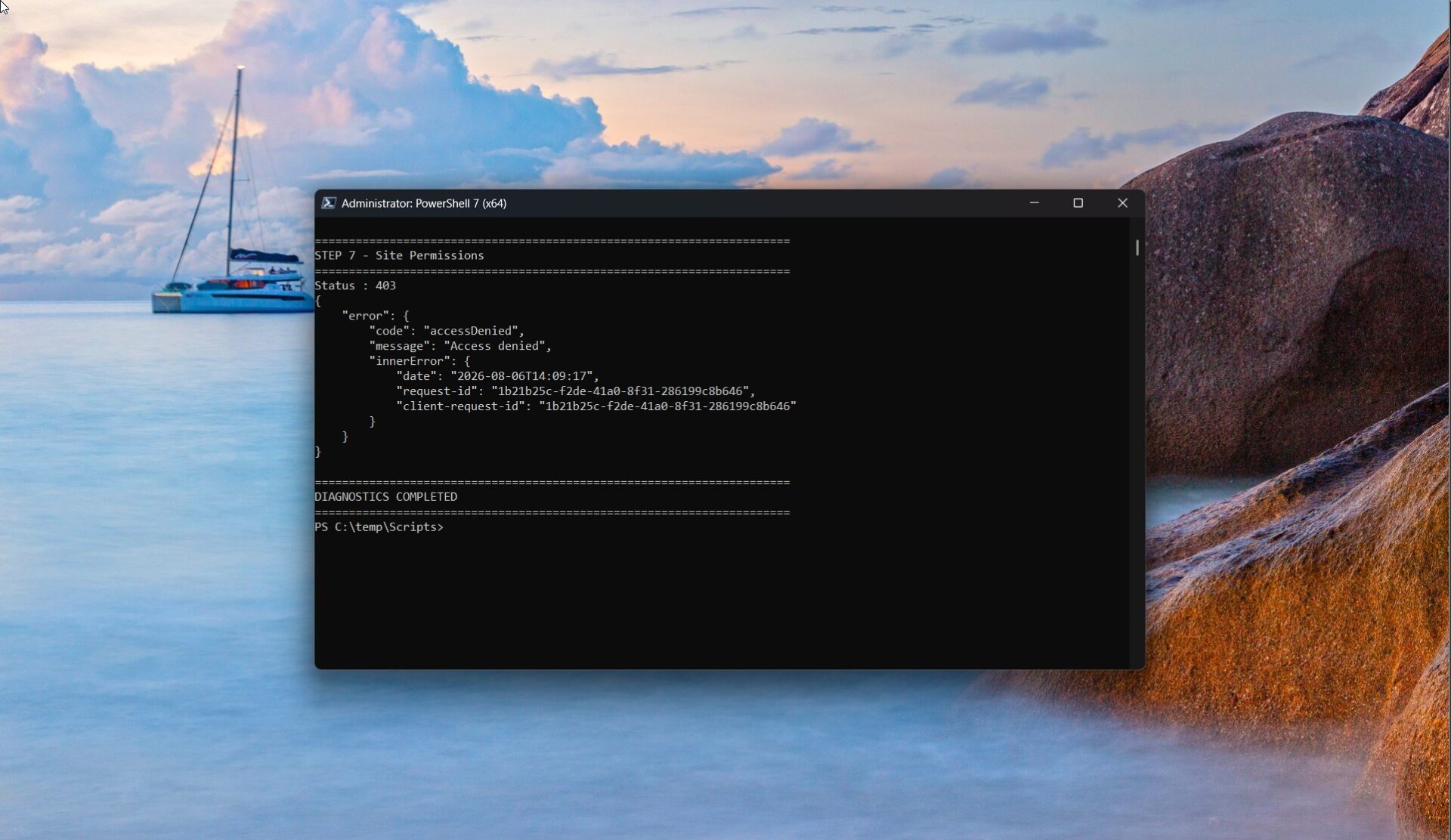
Why Does GET /permissions Return 403?
Many administrators think this indicates a configuration issue.
It usually doesn’t.
Applications granted Sites.Selected can access SharePoint content but cannot enumerate or manage site permissions.
Therefore:
GET

/sites/{site-id}/permissions
may return:
403 Access DeniedThis is expected.
Only administrators or applications with broader permissions can retrieve site permission assignments.
Diagnostic Flow
403 Access Denied
        │
        ▼
Can you obtain an OAuth token?
        │
   No ─────────► Authentication Issue
        │
       Yes
        │
        ▼
Decode JWT
        │
AppId correct?
        │
   No ─────────► Wrong App Registration
        │
       Yes
        │
        ▼
Roles contain Sites.Selected?
        │
   No ─────────► Missing API Permission
        │
       Yes
        │
        ▼
Retrieve Site
        │
403?
        │
        ▼
Verify Site Permission Assignment
        │
        ▼
Permission Exists?
        │
No ─────────► Grant Site Permission
        │
Yes
        │
        ▼
Retrieve Drives
        │
200?
        │
Yes
        │
        ▼
Application Successfully Connected
Common Mistakes
Wrong App Registration
The most common cause.
Always compare:
JWT AppId

vs

Granted Site Permission AppId
Using Secret ID
Never use:
Secret IDAlways use:
Secret ValueReusing Old Tokens
Always request a new access token after:
- Admin Consent
- New Client Secret
- New Site Permission
Forgetting Site Permission
Sites.Selected alone grants no SharePoint access.
You must grant permission to each site individually.
Wrong Site URL
Ensure the URL exactly matches the site.
Correct

/sites/SharePointSiteName
Not:
/productionAssuming 403 on /permissions Means Failure
It doesn’t.
Applications with Sites.Selected typically cannot enumerate permission assignments.
Security Best Practices
Avoid granting:
- Sites.Read.All
- Sites.ReadWrite.All
- Sites.FullControl.All
unless absolutely necessary.
Instead:
- Use Sites.Selected.
- Grant access only to the required site.
- Assign the minimum required role (
readorwrite).
This significantly reduces the impact if application credentials are compromised.
Conclusion
The biggest misconception about Sites.Selected is believing that granting the API permission automatically grants SharePoint access.
It doesn’t.
A working configuration requires all of the following:
- Microsoft Graph
Sites.Selected - (Optional) SharePoint
Sites.Selectedif using SharePoint REST - Admin Consent
- Site-specific permission assignment
- Correct Client ID and Client Secret
- A freshly issued access token
- Verification that the JWT
appidmatches the application that was granted access
During our investigation, the configuration was correct, but the application was requesting an access token for a different App Registration than the one that had been granted site access. Comparing the JWT appid with the SharePoint permission assignment immediately revealed the mismatch. Once the correct application was used, the site and document libraries became accessible through Microsoft Graph without requiring any tenant-wide SharePoint permissions.
This approach follows Microsoft’s least-privilege security model while providing a repeatable troubleshooting process for administrators who encounter 403 Access Denied when working with Sites.Selected.