After the recent update of Windows 10, the HP laptop which contains an inbuilt accelerometer facing a POPUP issue, prompting from the inbuild accelerometer stating the below-mentioned error. “HP Accelerometer doesn’t work on this version of Windows. An updated app may be available.” 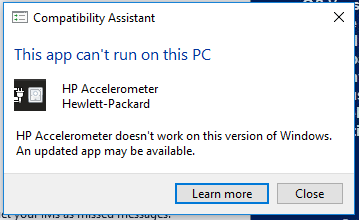
Resolve HP Accelerometer pop-up Issue:
What is Accelerometer and what is the Purpose of It? The genuine Accelerometer.sys file is a software component of HP 3D DriveGuard by Hewlett-Packard. HP 3D DriveGuard is a peripheral hardware device for select HP ProBook and EliteBook models that protects the hard drive from shocks and drops. Accelerometer.sys is a system driver associated with the 3D DriveGuard. This is not an essential Windows process and can be disabled if known to create problems. HP 3D DriveGuard is a safety device for hard drives that protects them against accidents, and major wear and tear through rough use. The device is named after the three-axis digital accelerometer that acts as a motion sensor, alerting the system of any sharp movements and automatically parking the hard drive to prevent any damage to data. HP 3D DriveGuard supports the Microsoft Windows platform.
Solution:
- Uninstall HP 3D DriveGuard from HP Laptop completely Download the version of HP 3D DriveGuard on the following link and save it to your Downloads folder.
- Click here to Download open your Downloads folder, right-click on the sp81142 package, extract files and then click Ok. Cut this newly extracted folder and paste it on your Desktop.
- When done, hold down the Windows key and press R Open RUN command and, type devmgmt.msc and hit enter. In Device Manager, expand System devices, right-click the HP Mobile Data Protection Sensor entry and select ‘Update Driver Software’.
- In the following window, select ‘Browser my computer for driver software’ and then select ‘Let me pick from a list of device drivers on my computer’. In the next window, click the ‘Have Disk‘ button and then browse to the extracted sp81142 folder you pasted on your Desktop.
- Browse into the sub-folder InstallFiles, open the folder Win10, left-click on the file accelerometer to highlight it, and then click Open.
- Click on ‘Ok’ and then click ‘Next’ and wait for the driver to install. Click ‘Close’ and then click ‘Yes’ to restart the notebook.